
A useful error video is short, steady, and specific. It shows the full bike for context, the display or affected part clearly, and the exact moment the symptom appears. The goal is not to make a polished video. The goal is to make the problem visible.
This checklist is for riders who already see an error, warning, intermittent response, unusual sound, or behavior that is hard to explain in text. For a broader evidence plan, use the e-bike problem documentation guide.
Start With a Full-Bike Shot
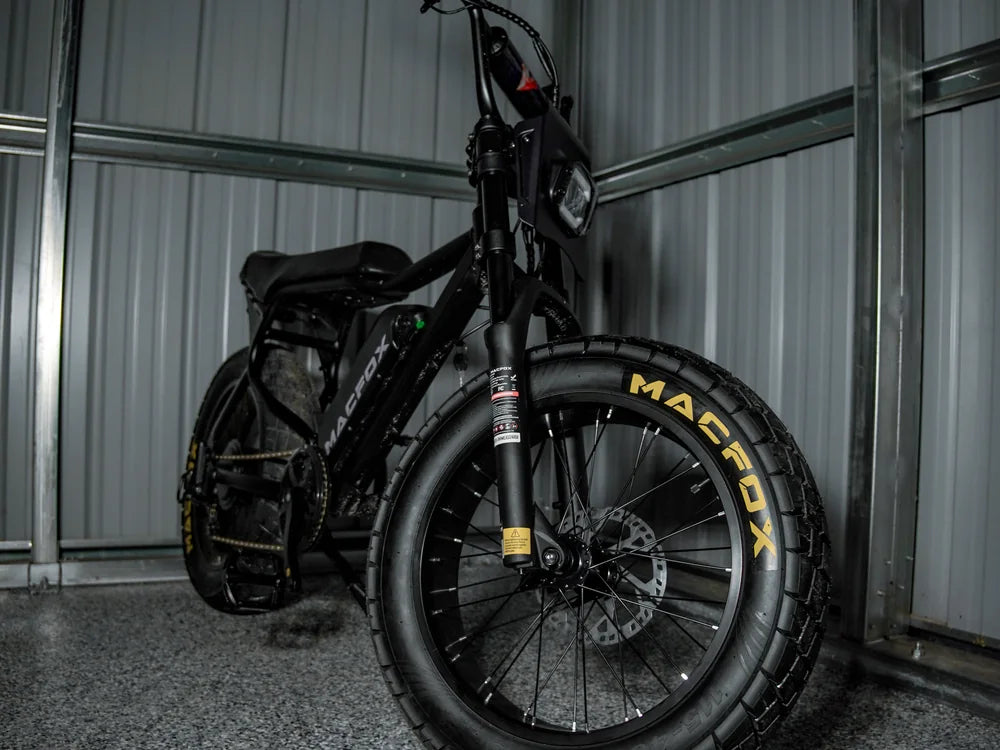
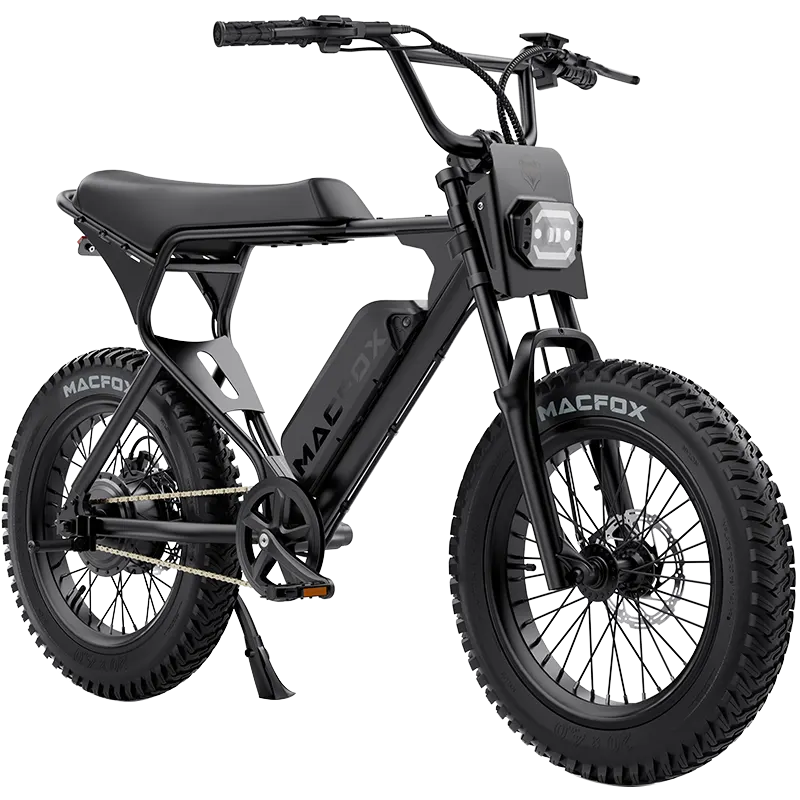
Begin the video far enough back that the full bike is visible. This helps support see the bike position, whether it is on the ground or a stand, and whether the issue appears during startup, braking, pedaling, or throttle use.
For any electric bike, context matters. A close-up of a cable or display may not show whether the battery is seated, the wheel is turning, the brake lever is being touched, or the bike is being tested in a safe position.

Record the Display Before Touching Controls
If the display is involved, hold the camera steady on the screen before pressing buttons or moving the bike. Record the startup state, any icons, error codes, battery bars, speed reading, assist level, and what happens when the symptom starts.
Do not zoom so tightly that the surrounding controls disappear. Support may need to see the display and your hand position at the same time.
Show the Control You Are Using
If the issue involves a throttle, brake lever, pedal assist, power button, or shifter, record the control and the response together. A good angle might show your thumb on the throttle and the wheel area in the same frame, or the brake lever and rear light response together.
For intermittent problems, repeat the action a few times without cutting the video. A single successful attempt followed by a failed attempt is often more useful than two separate clips.
Capture Sound Without Narrating Over It
If the issue includes clicking, rubbing, grinding, fan noise, or a motor sound, pause before speaking. Let the sound happen for a few seconds. Then briefly explain what the viewer just heard.
Background noise makes support harder, so avoid music, wind, or traffic if possible. If the sound only happens while riding, record from a safe place and do not hold the phone while controlling the bike in traffic.
End With a Close-Up of the Area
Finish with a steady close-up of the affected area: display, battery mount, charger port, brake caliper, wheel, tire, connector area, chain, or pedal section. Keep the camera still long enough for labels, alignment, or spacing to be visible.
If you are not sure what area matters, start with the full-bike shot and display shot, then follow the routing in the Macfox e-bike troubleshooting center. A short, clear video usually beats a long message that tries to describe every possible cause.